How to reduce PDF file size
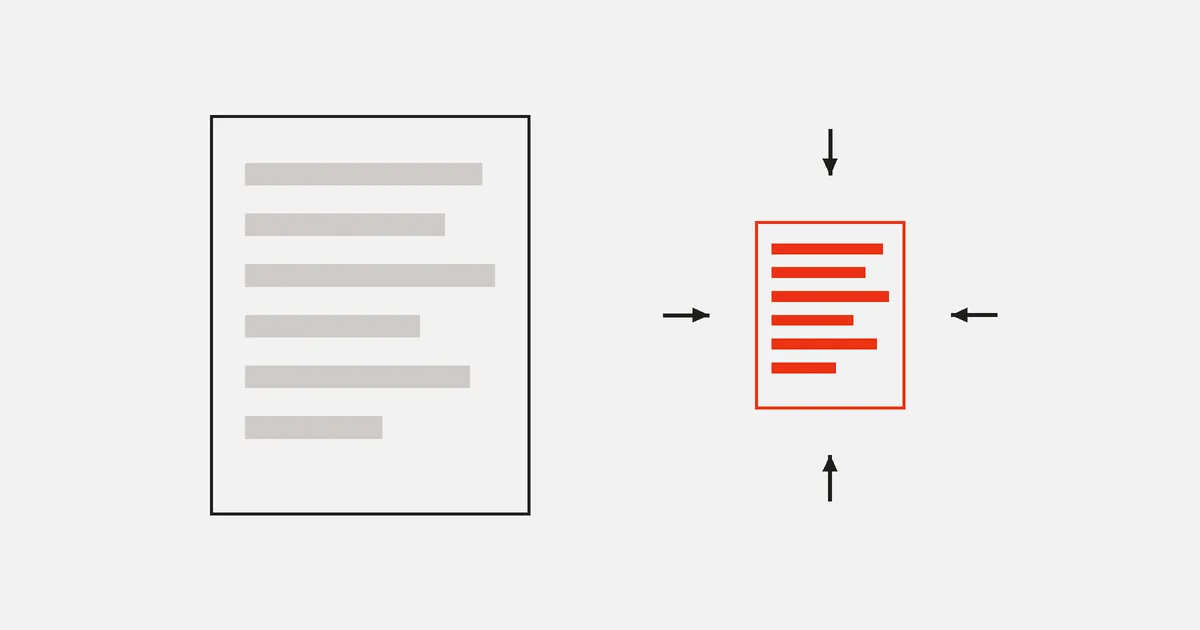
Why a PDF is large, what image compression can and cannot recover, and how to get a heavy scan under an email limit without turning the text into mush.
The mail server rejected it: 34 MB, limit 25. Reducing a PDF's file size is nearly always a matter of one thing — the pictures inside it. Text, fonts and page structure are small. Photographs and scans are not, and a document that is mostly scanned pages is mostly image data.
That is good news, because it means you can predict what compression will do before you run it, and know when it will do nothing at all.
Why the PDF file size is so large
| What is in the file | Typical share of the size | Can compression help? |
|---|---|---|
| Scanned pages (photographs of paper) | 90%+ | Yes, a lot |
| Embedded photographs | Most of the rest | Yes |
| Embedded font subsets | A few KB each | Barely |
| Text and page instructions | Kilobytes | No |
| Attachments, metadata, revisions | Varies | Sometimes |
A 200-page text document is often smaller than a five-page scan. If your file is large and contains no images, compression is the wrong tool — see the last section.
Why a scan is heavy in the first place
The arithmetic is worth doing once, because it explains both the problem and the fix.
An A4 page scanned at 300 dpi is about 2,480 × 3,500 pixels — roughly 8.7 megapixels, the resolution of a good phone camera, for one sheet of paper. At 600 dpi it is 35 megapixels. In colour, that is tens of megabytes per page before compression, and a few megabytes after it.
So a 40-page colour scan at 600 dpi is a large file by construction, not by accident. Two levers follow directly:
- Resolution. 300 dpi resolves everything a document needs; 600 dpi quadruples the data for text that was already legible. If you control the scanner, this is the setting that matters most.
- Colour. Greyscale roughly thirds the data of colour, and for a black-ink document it loses nothing you will miss. Many scanners default to colour regardless of what is on the paper.
Compression works on the file you already have; these two work on the file you are about to create.
What compression actually does
Image compression re-encodes the pictures at a lower quality, and often at fewer pixels. JPEG throws away detail your eye is unlikely to miss; doing it again to an already-compressed image throws away a bit more. MDN's guide to image formats is a good short primer on why that trade exists.
In PDFinline it is an option in the export dialog, with three levels:
- Light — quality 85%, images capped around 4 megapixels. Visually near-identical; useful when you need to shave a third off.
- Balanced — quality 70%, capped around 2 megapixels. The default answer for "make this emailable".
- Strong — quality 55%, capped around 1 megapixel. Fine for reading on a screen, visible on close inspection in print.
Two guarantees are worth knowing about. Text is never touched — it is not image data, so it stays exactly as sharp as it was, and stays searchable. And a re-encoded image is only kept if it came out smaller: a page that would grow is left alone, so the export can never be larger than the original.
Only JPEG images are re-encoded — the ones stored with the DCTDecode filter, which is what scanners and cameras produce. Line art stored as lossless bitmaps is left as it is, because re-encoding it as JPEG would make it both blurrier and, often, bigger.
Getting a scan under a limit
The practical recipe, in order of what to try:
- Compress at Balanced. For most scans this alone brings a 30 MB file to a few megabytes.
- Remove pages nobody needs. Blank back sides from a duplex scanner are pure overhead — delete them.
- Send only the relevant pages. Extracting three pages beats compressing forty.
- Try Strong if it is still too big and the document is for reading rather than printing.
- Rescan at a sane resolution if you control the scanner. 300 dpi is right for documents; 600 dpi doubles the data and adds nothing for text.
Steps 2 and 3 are the ones people skip, and they are lossless — fewer pages is a smaller file with no quality cost at all.
What compression cannot fix
- A file that is large because of revisions. Some producers save incrementally, keeping every past version inside the file. A "save as" in another tool rewrites it cleanly.
- Embedded attachments. A PDF can carry whole files inside it. Compression will not touch them; remove them.
- Hundreds of embedded fonts after merging many documents. Each part brought its own subsets. There is not much to reclaim here, and nothing worth breaking the text over.
- Text-only documents that are simply long. A thousand pages of text is a few megabytes and that is what it costs.
Do not compress these
- Anything going to print at size. A brochure or a poster needs its pixels. Compress the copy you email, not the one the printer gets.
- Archival copies. Compression is one-way: the detail is gone from the compressed file. Keep the original.
- Documents where the image is the evidence — a signature scan, a photographed receipt, a technical drawing. Strong compression can make small details ambiguous, and ambiguity is the one thing those documents cannot afford.
The habit that avoids regret: compress on export, keep the source. In PDFinline the file you opened is never modified — every export is a new document — so the original stays whatever it was.
Check the result, not the percentage
A compression tool that reports "reduced by 78%" has told you nothing about whether the document is still usable. Two checks:
- Read the smallest text on the busiest page at 100% zoom. If it is legible, the file is fine for reading.
- Look at one photograph at full size. Blockiness in flat areas — a wall, a sky — is the first sign of going too far.
If either fails, re-export at a lighter level from the original. Since compression happens at export, there is nothing to undo.
FAQ
Does compressing a PDF make the text blurry?
No. Text is not image data: it stays vector-sharp and searchable regardless of the level. Only pictures are re-encoded — which is why a scanned page, where the "text" is part of a photograph, does soften as you compress harder.
Can I compress a PDF without uploading it?
Yes. In PDFinline the images are re-encoded in your browser during the export, and nothing is sent to a server.
Why did compression barely change my file?
Because the file is probably not image-heavy — a text document has little to reclaim. It can also mean the images are already compressed as far as they usefully go, or that they are not JPEGs and were deliberately left untouched.
Is compressing a PDF reversible?
No. The discarded detail is not recoverable from the compressed file, which is why you keep the original and compress the copy you send.
What is a reasonable size for an emailed PDF?
Under 10 MB is safe almost everywhere; 25 MB is a common hard limit. For anything larger, a link beats an attachment.
Does compression affect edits I made to the text?
No. Text edits are rewritten into the page content, and compression only touches images — the two do not interact. Edited text stays searchable in the compressed file.
Final thoughts
Size problems in PDFs are image problems. Start by removing pages you do not need, compress at Balanced, then check the smallest text and one photograph before you send it. Keep the original — it costs nothing on disk and it is the only copy that still has the detail.