How to split a PDF into separate files
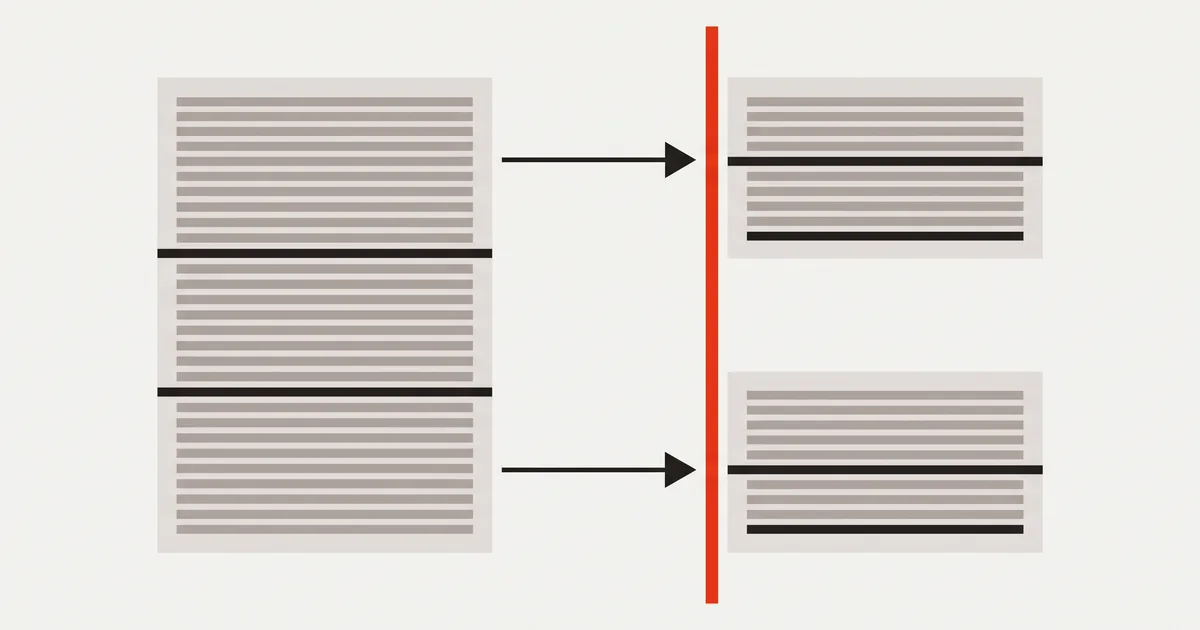
Split a PDF by page range, one file per page, or into a single trimmed document — and how to name the parts so nobody has to open them to know what they are.
A 60-page scan arrives and only pages 12–14 concern you. Or one file holds four invoices that belong in four folders. Splitting a PDF is the answer in both cases, but they are not the same operation: one produces a single smaller document, the other produces several files at once.
Getting that distinction right saves the round trip where you split a file, look at the results, and split it again.
Three ways to split a PDF, and when each fits
| What you want | The operation | Result |
|---|---|---|
| One shorter document | Export a page range | A single file with only those pages |
| A file per section | Split by ranges | As many files as you defined ranges |
| A file per page | Split every page | One file per page, numbered |
Most tools offer only the middle one, which is why people end up with document-1.pdf … document-9.pdf when what they wanted was a three-page excerpt.
Splitting into a page range
This is the "I need pages 12–14" case, and it is not really splitting — it is exporting a subset. In PDFinline the export dialog takes a page range: type 12-14, and the exported file holds those three pages and nothing else.
Ranges accept the notation you would expect — 1-3, 5, 8-10 in one line — and the pages are numbered as you see them in the viewer, starting at 1. That last detail matters more than it sounds: a document whose printed page numbers start after a cover will not line up with the file's own numbering, and the tool always means the latter.
Splitting into several files
When one file has to become many, define the ranges and let the tool build them. Pick Several files by range in the export dialog and enter the boundaries — for four invoices in a 12-page file, 1-3, 4-6, 7-9, 10-12.
Each range becomes its own file, named after the pages it holds, so invoices_1-3.pdf tells you what is inside without opening it. The parts are built one at a time in your browser, then offered as separate downloads. There is no ZIP: an archive of four PDFs is one more thing to unpack, and browsers download the parts perfectly well on their own.
If every page should stand alone — a stack of scanned receipts, say — Every page as its own file does that without you typing 40 ranges.
Naming the parts so they stay usable
Whatever tool you use, the file names decide how much work the split creates for whoever receives them:
- Include the page numbers.
report_7-12.pdfsurvives being moved, forwarded and re-downloaded. - Pad the numbers when a document has more than nine parts:
part-02sorts beforepart-10,part-2does not. This is the same trap that makes merging files land in the wrong order. - Say what it is, not what it came from.
invoice-2026-04-Meyer.pdfbeatsscan_0032_part3.pdffor anyone filing it.
Split, or extract?
The two are easy to confuse, and the difference is about what you keep:
- Splitting divides a document into parts — after the operation, every page lives in one of the outputs.
- Extracting pulls out the pages you want and ignores the rest. Nothing accounts for the pages you left behind.
If a colleague asks for "just the signature page", they want an extract. If the accounts department wants one file per invoice, that is a split. Deleting pages is the third variant of the same idea, applied in place: same document, fewer pages.
Before you split: check what you are splitting
Two minutes here saves reissuing the parts:
- Confirm the boundaries by looking at the first and last page of each intended range. Off-by-one is the classic split error, especially in scanned batches with separator sheets.
- Check for a cover page that should be repeated in every part — a letterhead, a confidentiality notice. If each part needs it, duplicate the page before splitting rather than adding it to each output afterwards.
- Look for pages that belong to two ranges. A summary that both halves need has to be duplicated, not assigned.
- Correct any text now. A typo fixed once in the source beats the same fix in four parts — and editing the text in place keeps every part consistent.
Splitting scans and other awkward files
Scanned documents split like any other PDF — pages are pages, whatever they contain. Two things to know:
Size. Each part carries the images of its own pages, so the total across the parts is roughly the size of the original. If the parts are going by email, compress on export.
Encryption. A password-protected file has to be unlocked before it can be split, and the parts come out unencrypted. If they should stay protected, that has to be reapplied — worth remembering before sending them on. Why a PDF can refuse to be edited covers the other cases where a file will not cooperate.
The page tree that all of this rearranges is a plain structure defined in ISO 32000-1 — which is why splitting is lossless: pages are copied, not re-rendered.
FAQ
Does splitting a PDF lose quality?
No. Pages are copied as they are, with the same text, images and fonts. Quality changes only if you choose to compress the output.
Can I split a PDF without uploading it anywhere?
Yes. In PDFinline the parts are built in your browser, one after another, and nothing is sent to a server — the same as every other operation in the editor.
Why do I get separate downloads instead of a ZIP file?
Because a ZIP is an extra step for the recipient and for you. Browsers handle a handful of downloads without trouble, and the files arrive named after their page ranges.
How do I split a PDF in half?
Take the page count, divide it, and enter two ranges — 1-20, 21-40 for a 40-page file. If the halves are meant to be even and the count is odd, decide where the extra page belongs before you split rather than after.
Can I split by bookmarks or by chapter?
Not automatically here. Open the outline, note the page each chapter starts on, and enter those numbers as ranges. For a document with dozens of chapters, that is a few minutes of typing — and it is exact, which automatic detection often is not.
What happens to bookmarks and links in the parts?
Bookmarks pointing inside a part usually survive; links to pages that ended up in a different file cannot resolve any more. Check anything a reader is meant to click.
Final thoughts
Splitting a PDF is two decisions and one export: what the boundaries are, and whether you want one file or several. Get the boundaries from the pages themselves rather than from the printed page numbers, name the parts after the pages they hold, and check the ends of each range before you send them. The rest is the tool's job.