How to merge PDFs and keep the page order
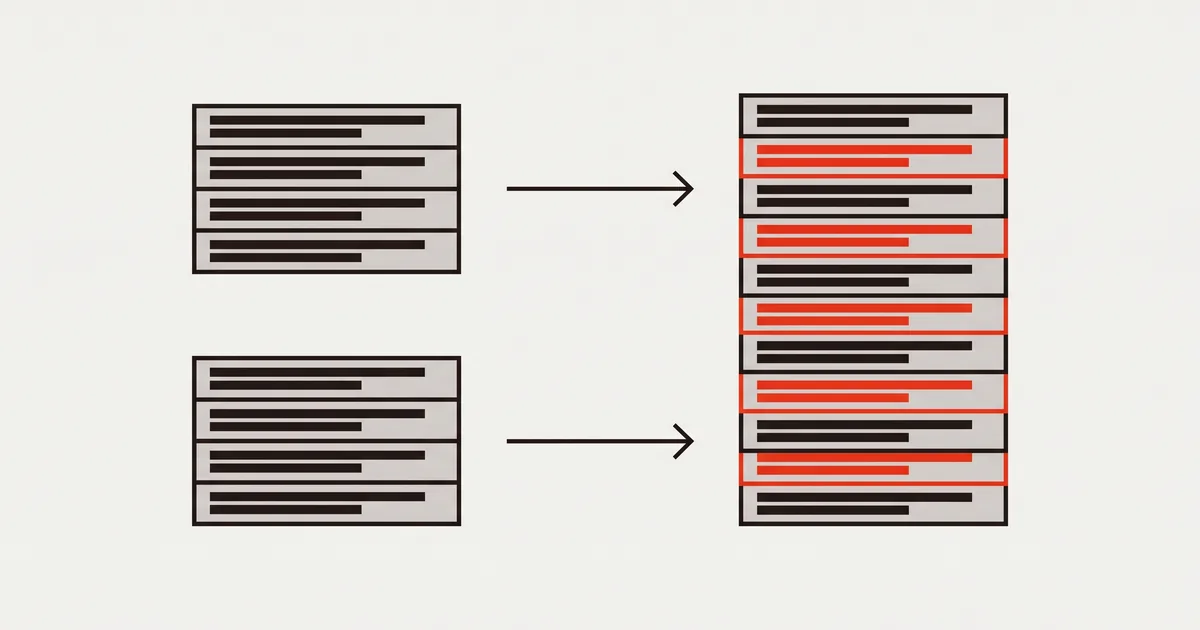
Merging is easy; getting the pages in the order you meant is the actual work. How file order, page order and reordering after the merge fit together.
Combining files is the easy half. Merging PDFs in the right order is where it usually goes wrong: the tool sorts by filename, or by the order the operating system handed the files over, and you end up with the cover letter in the middle and page 10 before page 9.
The fix is knowing which order a tool is actually using, and being able to change the result afterwards instead of merging three times. Here is how to get it right in one pass.
Two different orders
Every merge involves two orderings, and confusing them is the root of most mistakes:
- File order — which document comes first. This is what you set when you pick the files.
- Page order — the sequence of pages in the finished document, held in the file's page tree (ISO 32000-1, §7.7.3). It starts as file order, then becomes something you can rearrange.
A tool that only lets you control the first will do exactly what it was told and still produce the wrong document, because "report.pdf, appendix.pdf, cover.pdf" is not the order anyone wants to read.
Why files arrive in the wrong order
Three things sabotage file order, and they are all predictable:
Alphabetical sorting. Page10.pdf sorts before Page2.pdf, because text comparison looks at characters, not numbers. Padding the names — page02, page10 — fixes it permanently.
Selection order is not preserved. In most file pickers, Ctrl-clicking files in a careful sequence gives the tool a list sorted by name or date anyway. Never rely on the order in which you clicked.
Scanner batches. Duplex scanners often produce odds and evens as two separate files, or in reverse. Check the first and last page of each before merging rather than after.
How to merge PDFs and keep the page order you meant
The workflow that avoids repeat merges is to combine everything first and arrange the pages second. In PDFinline:
- Drop all the files onto the page at once. They are combined as they open — in the browser, with nothing uploaded — so you get one document rather than a queue of jobs.
- Open the pages panel. Every page from every file is there as a thumbnail, in the order the merge produced.
- Drag pages into the order you want. This is the step that makes file order stop mattering: a page dragged to the front is the first page of the export.
- Delete or duplicate as needed. Blank scanner separator sheets, duplicate cover pages, an appendix you want twice — handle it here.
- Export once. The new page order is written into the file, not stored as a view.
Because the reordering happens after the merge, you never have to guess how the tool will sort your files. If the result is wrong, you fix the result.
Checking the result before you send it
Two checks catch nearly everything:
- First and last page. A merge that went wrong almost always shows it at one of the two ends.
- Page count. Add up the sources and compare. A count that is short by one usually means a file failed to open — an encrypted document, or something that is not a PDF; a count that is long usually means a separator sheet or a duplicated cover.
If a source file is password-protected, supply the password when you open it. It will be merged decrypted, and the export is an ordinary unlocked PDF — worth knowing before you send a document you thought was still protected. Why a PDF can refuse to be edited covers the other cases where a file will not open.
Merging pieces of files
Often you do not want a whole document, only part of it — three pages from a contract, one appendix from a report. Two ways round:
Extract first, then merge. Pull out the pages you need into a small file, then merge that. Best when the same excerpt gets reused.
Merge everything, then delete. Combine the full documents and remove the pages you do not want in the pages panel. Best when you are deciding as you go, since you can see everything side by side.
For the reverse job — one document that needs to become several — see splitting a PDF, which is the same page-range thinking pointed the other way.
Details that make the merged file behave
A merged PDF inherits its parts, and a few properties are worth a glance:
| What | Why it matters | What to do |
|---|---|---|
| Mixed page sizes | An A5 flyer between A4 pages prints badly | Keep sizes consistent, or warn the recipient |
| Rotated pages | A landscape scan mixed into portrait pages | Rotate the pages so the export is upright |
| Bookmarks | Sources may bring their own outline | Check the outline after merging; prune what is confusing |
| File size | Scanned sources add up quickly | Compress on export — it re-encodes images only |
| Form fields | Two sources with same-named fields can collide | Flatten before merging, or type answers on the page instead |
Text is unaffected by any of this: pages keep their own fonts, so a merged document can carry several and still search correctly. If you need to correct wording in one of the parts, edit the text in place after merging rather than fixing the source and merging again.
FAQ
Does merging PDFs reduce quality?
No. Pages are copied as they are — same text, same images, same fonts. Quality only changes if you deliberately compress the result on export.
Can I reorder pages after merging, or do I have to start over?
You can reorder afterwards, and it is the better habit: merge everything, then drag pages into place and export once. Starting over is the workflow of tools that cannot rearrange pages.
How do I merge only some pages from each file?
Either extract those pages into a smaller file first and merge it, or merge everything and delete what you do not need. Both end in one export.
Can I correct a typo in one of the merged parts?
Yes — edit the text in place after merging. Just make sure the tool rewrites the text rather than covering it, or the merged file will still contain the old wording.
Will bookmarks and links survive the merge?
Bookmarks usually come across; internal links can break when the pages they point to move. Check anything a reader is meant to click, especially after reordering.
Is it safe to merge confidential documents online?
It depends entirely on whether the file is uploaded. In PDFinline the merge happens in your browser, so the documents never leave your machine — the honest question to ask any online tool is where the processing takes place.
What happens if one of the files is password-protected?
You will need the password to open it. Once supplied, it merges normally, and the exported document is not encrypted — if the result should stay protected, encrypt it again afterwards.
Final thoughts
Getting a merge right is mostly a matter of not trusting the file order. Combine everything in one pass, look at the pages as thumbnails, drag them into the order a reader expects, and check the first page, the last page and the count before you send it. Two minutes of arranging beats three rounds of merging — and the recipient never has to ask which page comes next.