How to extract pages from a PDF
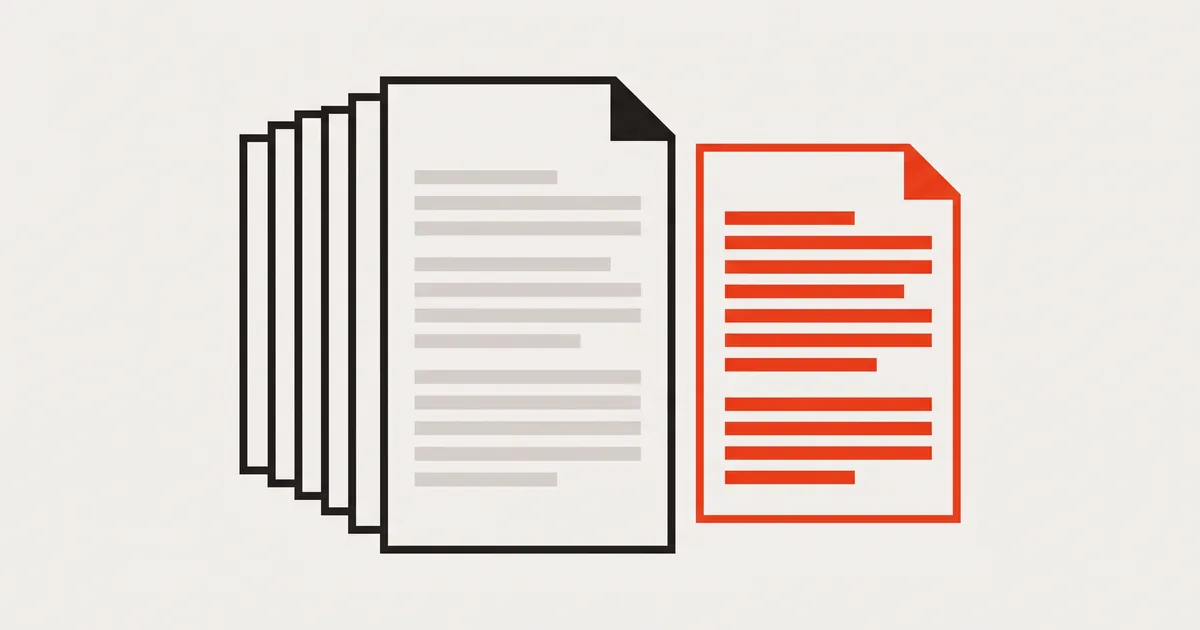
Pull the pages you need into a new file without touching the original — how extracting differs from splitting and deleting, and how to pick the right pages.
"Can you send me the signature page?" You have a 40-page contract and somebody needs one sheet of it. Extracting pages from a PDF copies the pages you choose into a new document and leaves the original exactly as it was — which is why it is the right operation for almost every "just send me page 12" request.
It takes about as long as attaching the whole file, and the recipient gets what they asked for instead of a scroll bar.
Extract, split or delete?
All three change which pages you end up with. The difference is what happens to everything else:
| Operation | The original | The rest of the pages |
|---|---|---|
| Extract | Untouched | Ignored |
| Delete | Becomes the new document | Removed from it |
| Split | Becomes several documents | Distributed across the parts |
Extracting is the least destructive of the three, and the easiest to redo. If you extract the wrong pages, extract again — nothing was consumed.
How to extract pages from a PDF
In PDFinline:
- Open the PDF. It is parsed in your browser, and nothing is uploaded.
- Decide which pages by looking at the thumbnails rather than the printed page numbers — see below.
- Enter the range in the export dialog:
12, or12-14, or1, 12-14, 20. - Export. You get a new file with those pages, in that order, and the file you opened is unchanged.
The order in the range is the order in the output, which is occasionally useful: 20, 12-14 puts page 20 first without a separate reordering step.
Getting the page numbers right
This is where extraction goes wrong, and it is always the same cause: two numbering systems.
- File numbering counts pages from the first one in the document, starting at 1. This is what every tool means.
- Printed numbering is ink on the page. A document with a cover and a contents page may print "1" on the third sheet.
If a colleague says "page 7", ask which one they mean, or open the file and look. In a scanned document the printed numbers may not exist at all, and in a merged one they may restart in the middle.
Two habits help:
- Read the thumbnails, not the numbers. You can see a signature block, a table, a photograph.
- Check the first and last page of the exported file before sending it. It catches every off-by-one.
When extracting is the better answer
- Somebody asked for a specific page. Send that page, not the file it lives in.
- A document must be split by recipient. Extract each recipient's pages into their own file — related to splitting, but with no obligation to account for every page.
- You need the same excerpt repeatedly. Extract it once and keep the excerpt.
- The file is too large to email. Often the pages that matter are a fraction of the document. Extract them, and compress if they are heavy scans.
- Only part of a document is public. Extracting the public pages is safer than deleting the private ones, because you are choosing what to include rather than what to remove.
That last point is worth dwelling on. An extract contains only the pages you named — the pages you left behind are not in the file in any form. Building a document by inclusion is a much easier thing to verify than building it by exclusion.
What comes with the extracted pages
The pages arrive complete: their text (still searchable and selectable), their images, their fonts, their annotations. Because pages are copied rather than re-rendered — the page tree is the plain structure described in ISO 32000-1 — nothing is degraded.
A few things behave differently:
- Internal links that pointed at pages you did not extract cannot resolve. Check any link a reader is meant to click.
- Bookmarks may come across partially, or point outside the new document.
- Form fields are copied with their pages, and different software treats their values differently — see filling in a PDF with no form fields for the general problem.
- File size is not proportional to page count when pages share images or fonts. Two pages out of forty can still be a big file if they carry the photographs.
Naming and filing the extract
An extract usually exists to be sent, so the name is part of the job. Three rules that save a follow-up email:
- Say what it contains, not where it came from.
contract-signature-page.pdfis self-explanatory;scan_0032_p12.pdfneeds the original document to make sense. - Keep the page numbers when the excerpt is a range.
report_7-12.pdfsurvives being forwarded and re-downloaded, and it tells the recipient how much to expect. - Pad numbers if there will be many.
part-02sorts beforepart-10;part-2does not — the same trap that puts merged files in the wrong order.
If the same excerpt gets requested repeatedly — a licence page, a certificate, a signature sheet — extract it once and keep the small file next to the original. It costs almost nothing on disk, and it turns the next request into an attachment rather than a task.
Extracting from a scan or a locked file
Scanned pages extract like any others; the output holds the images of the pages you chose. Remember that a scan has no text unless it has been through OCR, so the extract will not be searchable either.
An encrypted PDF has to be unlocked with its password first, and the extracted file comes out unencrypted. If the excerpt needs protection, apply it again. For everything else that can stop a file from cooperating, see why a PDF can refuse to be edited.
FAQ
Does extracting pages change the original PDF?
No. Extracting produces a new file; the document you opened is untouched. That is the main practical difference from deleting pages.
Can I extract non-consecutive pages into one file?
Yes — list them: 1, 5, 9-11. They arrive in the order you wrote them, which lets you reorder while extracting.
Will the extracted text still be searchable?
Yes, if the source pages had real text. Pages are copied intact, so search, copy-paste and screen readers work as before. A scanned page stays an image, in the extract as in the original.
How do I extract one page from a large PDF quickly?
Open it, type the single page number in the range field, export. There is no need to delete the other pages — extracting ignores them.
Is extracting safe for confidential documents?
Safer than the alternatives, for two reasons: the pages you did not name are not in the output at all, and in PDFinline the whole operation happens in your browser, so the document is never uploaded.
Can I extract pages and then edit them?
Yes, in either order. Extract first and edit the small file, or edit the text and extract afterwards — the result is the same, and the smaller file is usually easier to work in.
Final thoughts
Extracting is the polite version of sending a document: the recipient gets the pages they asked for, and nothing else travels with them. Pick the pages from the thumbnails, list them in the order you want, check the ends of the result, and keep the original — the next request will probably be for a different page.