Why your edited PDF still shows the old text
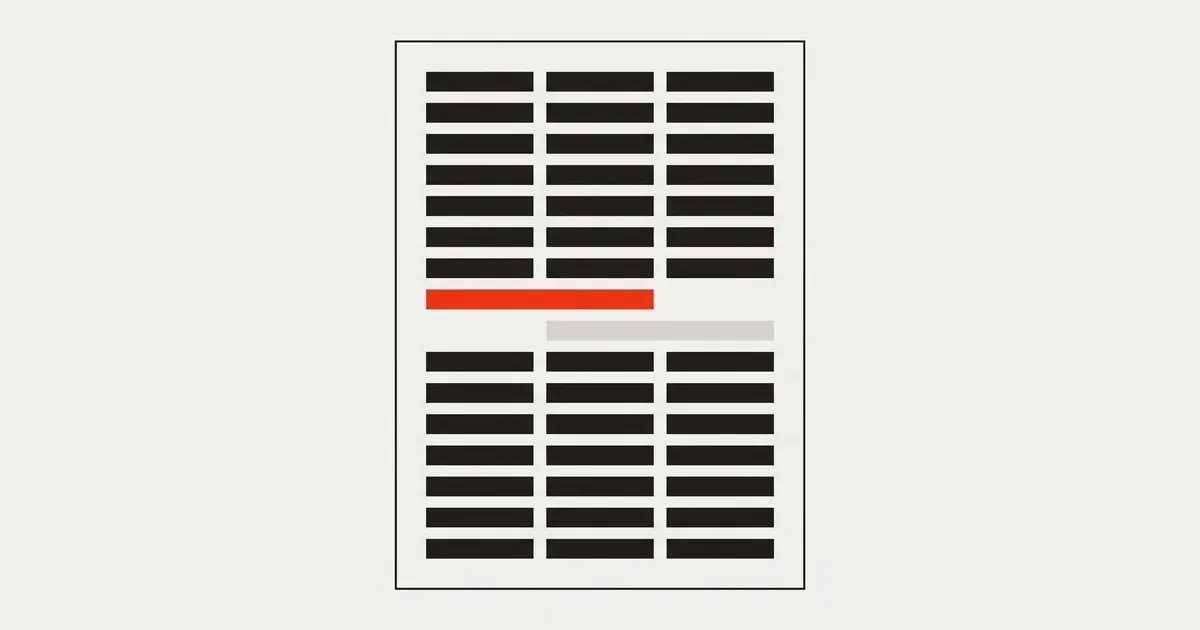
You changed the PDF, exported it, and search still finds the original wording. Here is what happened to the file, how to check it, and how to fix it properly.
You corrected the amount, exported the file, sent it — and somebody replied that their system still shows the old figure. Or you searched your own document and found the sentence you deleted. The edited PDF still shows the old text because the editor never removed it: it drew your version on top and left the original in the page.
This is the single most common surprise in PDF editing, and it is not a bug in your file. It is a design choice in the tool. Here is how to confirm it, what it breaks, and what to do with both the file you already have and the next one.
Why the edited PDF still shows the old text
A PDF page is a list of drawing instructions. There are two ways to "change" a line of text:
- Draw over it. Append a white rectangle to hide the old words, then append new text on top. Two additions, nothing removed.
- Rewrite it. Find the instruction that draws the original words, remove it, and emit a new one in the same position.
Almost every free online editor does the first. It is far easier: no content-stream parsing, no font handling, no subset encodings to decode. And on screen it works — the old words are hidden behind an opaque shape.
But hiding is a visual effect. Everything that reads the file rather than looking at it still walks the same list of instructions, finds the original text run, and reports it. Search does. Copy-paste does. So do document indexers, contract archives, accounting importers and screen readers.
How to confirm it in twenty seconds
Open the exported file and run these three checks:
- Search for the old text (
Ctrl/Cmd+F). If it is found, it is still in the page — regardless of what you see. - Select the corrected line and copy it. Paste into a plain text editor. If you get the old wording, or both versions, the original is underneath.
- Zoom to 400–800% and look at the patch. An overlay usually shows a rectangle in a slightly different white, a hairline edge, or text whose spacing does not match its neighbours.
For a stricter check, extract the text layer with a command-line tool. pdftotext file.pdf - (part of Poppler) prints exactly what a machine reads, in order — both versions will be there, usually adjacent.
Why it matters more than it looks
If the document is a one-off print, an overlay is cosmetically fine. In every other case it causes real problems:
- Search returns the wrong version. The person looking for "€ 4,700" finds the file that says € 4,000 on screen.
- Copy-paste leaks the original. Anyone quoting from your document may quote the old text without knowing.
- Automated systems read the old value. Importers and parsers take the text in the page, not the picture.
- It is not redaction. Covering a name with a black box leaves the name in the file — a mistake that has produced real leaks from published documents.
- Screen readers read the old wording, so the accessible version of your document is the uncorrected one.
If you covered something confidential rather than removing it, treat the file as if the information were visible, because for anything reading the bytes it is.
Fixing the file you already have
Once the export exists, the overlay is part of it. You have two honest options:
Go back to the original. Take the untouched file and redo the change with an editor that rewrites text in place. This is the clean outcome: one version of every sentence, correct fonts, no patches.
Rebuild the page. If the original is gone, the only reliable route is to remove the old text run — which requires an editor that can address it — or to recreate the page from scratch. Stacking another patch on top does not help.
If the sensitive-information case applies, do not ship a covered file at all. Remove the text, then verify with pdftotext or a search before sending.
Doing it right the next time
What you need is an editor that treats the text as text. In PDFinline the file opens in the browser, you click the line you want to change, and it becomes editable in place using the document's own font and size. On export, the original run is removed from the content stream and yours is written in the same position — so afterwards there is exactly one version of that sentence in the file.
The workflow, in four steps:
- Drop the PDF onto the page. It is parsed locally; nothing is uploaded.
- Click the line. Type.
Entercommits,Esccancels. - Repeat per line — every commit is a separate step you can undo.
- Export, then run the three checks above on the result.
That last step is the habit worth keeping, whichever tool you use. How to edit text in a PDF walks through the same flow in more detail, and adding text versus editing existing text explains when an overlay is genuinely the right tool — over blank space, on a scan, or on a page whose text has been converted to outlines.
When an overlay is unavoidable
Sometimes there is no text run to rewrite, and the patch is the only option:
- Scanned pages contain an image, not words. Nothing to edit until the file goes through OCR.
- Text converted to outlines is a set of vector shapes that look like letters.
- XFA forms are read-only in most modern software — typing on the page is the way to fill in a form with no usable fields.
In those cases, do it deliberately: place your text, and know that a machine still sees whatever was underneath — for a scan, that is nothing, which is why the overlay is safe there. Why a PDF can refuse to be edited covers how to identify each case.
FAQ
Does a white rectangle over text delete it?
No. It is one more drawing operation on top of the page. The text underneath remains, and search, copy-paste and parsers all still find it.
Why do so many editors work this way?
Because rewriting text in a PDF is genuinely hard: the tool must parse the content stream, decode subset font encodings, and re-emit valid instructions with correct widths. Drawing a box and some text on top takes a fraction of the effort and looks the same in a screenshot.
Can I check for hidden text without installing anything?
Yes — select all and copy in your viewer, then paste into any text editor. What you see pasted is what machines read. It is less precise than pdftotext, and it catches this problem every time.
Is "flatten" the same as removing the old text?
No. Flattening merges layers and annotations into the page so they can no longer be moved or toggled. The old text run is still a drawing instruction in that page — flattened, and still readable.
My PDF shows the old text only in some programs. Why?
Because programs choose what to show: a viewer renders the visual result, while search and text extraction read the instruction list. Both are looking at the same file and reporting different layers of it.
Will editing text in place break a digital signature?
Yes — any byte change invalidates a signature, and it will report as broken. Make the correction first, then sign.
Final thoughts
"The old text is still there" is the difference between a document that looks corrected and one that is. The check takes twenty seconds and the fix is a choice of tool: edit the text that is in the file, then verify the export. Anything that only paints over the page is a picture of a correction — useful for a printout, and not something to send to a system that reads.