How to rotate PDF pages so they stay rotated
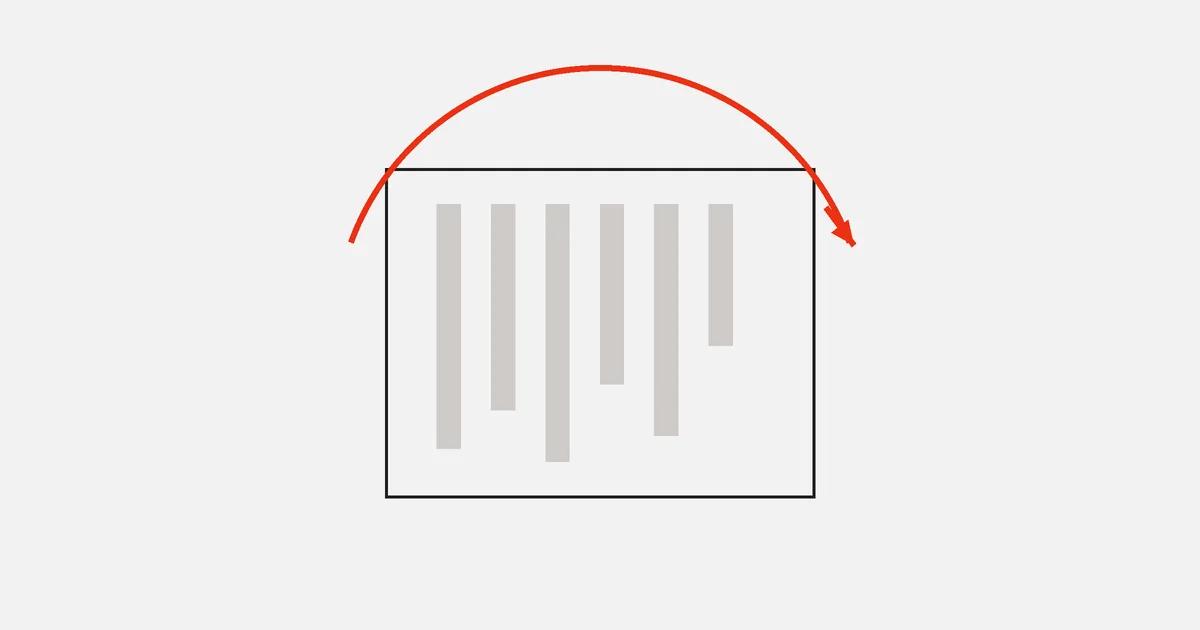
A page that snaps back to sideways was rotated in the viewer, not in the file. How to rotate pages permanently, and why some scans still print crooked.
You turn a sideways scan upright, close the file, open it again — and it is sideways again. Rotating PDF pages permanently means changing the page in the file, not the way one program happens to display it. Most viewers offer the second and call it rotation, which is why the fix never sticks.
Here is the difference, how to make a rotation part of the document, and what to do about scans that are almost-but-not-quite straight.
Why the rotation did not stick
A PDF page carries its own orientation: an attribute that says "display this page turned 90 degrees". It is part of the page, saved with the file, and honoured by every viewer and printer.
Your viewer's rotate button usually does not touch it. It rotates the view — a temporary display setting that lives in the application, not in the document. Close the file and the setting is gone; send the file and the recipient never had it.
Two ways to tell which you are dealing with:
- Does the viewer offer to save? A view rotation needs no save, because nothing changed in the file.
- Open the file somewhere else. A different program, or a phone. A rotation that travels is in the document.
How to rotate PDF pages in the file itself
In PDFinline rotation is an edit to the document, exported into the file:
- Open the PDF. Parsed in your browser; nothing uploaded.
- Open the pages panel and select the page — or several, with
Shift. - Rotate in 90-degree steps until it reads correctly. The thumbnails and the canvas both follow.
- Export. The new orientation is written into the page, so every viewer and printer sees the page the way you left it.
Undo works on rotation like any other step, and rotating one page does not disturb the others — useful for the common case of a landscape table in the middle of a portrait report.
Which pages need rotating
Mixed orientation usually comes from one of these:
| Situation | What to do |
|---|---|
| Whole document sideways | Select all pages, rotate once |
| One landscape table among portrait pages | Rotate that page only |
| Every second page upside down | Duplex scanner fed the back sides inverted — rotate the even pages 180° |
| Scan rotated 90° the wrong way | Two rotations, or one in the other direction |
| Page slightly tilted, a few degrees | Not a rotation problem — see below |
The 90-degree rule, and what it means for crooked scans
Page rotation is defined in quarter turns: 90, 180, 270. That is what the format supports, and it is enough for orientation.
It is not enough for a scan that came in three degrees off, and there is no "straighten by 3°" in a PDF page. The options are:
- Rescan it, straight. Usually faster than anything else.
- Deskew it as an image in a scanning or image tool, then rebuild the PDF.
- Live with it, but match anything you add: if you are filling in a tilted form, align your text with the printed lines rather than with the page edges.
What the rotation looks like in the file
A page in a PDF has a rotation attribute — /Rotate in the page dictionary, described in ISO 32000-1 — whose value is 0, 90, 180 or 270. Nothing else about the page changes when you rotate it: the text keeps its coordinates, the images keep theirs, and the viewer is simply told to turn the sheet before drawing.
Three consequences follow, and they explain most of the confusion around rotated pages:
- Rotation is free and lossless. No pixels are resampled and no text is rewritten, so a page can be rotated any number of times with no degradation.
- Coordinates do not move with it. If you place a signature on a page and then rotate the page, the signature rotates with the page — it is content on that sheet, not an overlay on your screen.
- Every viewer honours it, because it is part of the page rather than a preference. That is exactly why the rotation your viewer's toolbar applies does not travel: it never went into this attribute.
Rotating a page also leaves its media box alone, which is why a rotated A4 page is still A4 — see the printing note below.
Rotation and printing
Two practical notes:
Rotation is not paper size. A rotated A4 page is still A4, now landscape. If a printer scales it, the culprit is the print dialog's "fit to page", not the rotation.
Print preview is the honest test. Look at the preview after exporting, not at the thumbnail in your editor. It is the same pipeline the recipient's printer will use.
If a document mixes orientations deliberately — portrait text with landscape appendices — that is fine and normal, and printers handle it. What confuses readers is a single page turned the wrong way among fifty.
While you are in the pages panel
Rotation is rarely the only thing a scanned document needs. In the same session you can:
- Delete the blank back sides a duplex scanner produced.
- Reorder pages that arrived out of sequence.
- Extract only the pages somebody actually asked for.
- Compress the images if the scan is heavy.
Do them all, then export once. Every export is a new file, and one file with every fix is easier to keep track of than four.
FAQ
Why does my PDF open sideways for me but not for a colleague?
Because your viewer remembered a view rotation for that file locally. Nothing in the document changed, so anyone else sees the original orientation. Rotate and export to make it part of the file.
Can I rotate a PDF page by 45 degrees?
Not as page rotation — the page attribute only takes 90-degree steps. Arbitrary angles are a property of content drawn on the page, not of the page itself, which is why an editor rotates objects freely and pages in quarters.
Does rotating a page affect the text in it?
No. The text stays exactly where it was relative to the page; only the page's display orientation changes. Search, copy-paste and editing the text all behave as before.
Will rotation survive merging or splitting?
Yes. Rotation is a property of the page, so it travels with the page into a merged file or a split part — which is one reason to rotate before merging rather than after.
How do I fix a scan where every other page is upside down?
Select the even pages in the pages panel and rotate them 180 degrees. It is the standard artefact of a duplex scanner that pulled the back sides in inverted, and one operation fixes the whole document.
Is there a way to rotate a page without re-saving the whole file?
For your own viewing, yes — that is what the view rotation is for. For anything you send, the rotation has to be in the file, which means exporting a new document.
Final thoughts
"It keeps going back" is the sign that your rotation lived in the viewer instead of the document. Rotate in an editor, export, and open the result somewhere else to confirm — once the orientation is in the file, it is in every copy of it, on every screen and every printer.